
ClaudeDisplay
Ein kleines Touch-Display auf dem Schreibtisch, das meine Claude-Nutzung und den Zustand aller laufenden Claude-Code-Sessions auf einen Blick zeigt – über USB, ohne WLAN und ohne Token auf dem Gerät.
- Sprache
- PowerShell
- Version
- v2.6.0
- Aktualisiert
Gebaut mit AIIdee, Anforderungen und Tests: ich. Code: AI.
ClaudeDisplay-Setup-v2.6.0.zip · 541 KB · 4. Okt. 2026 · Alle Dateien (5) ↗
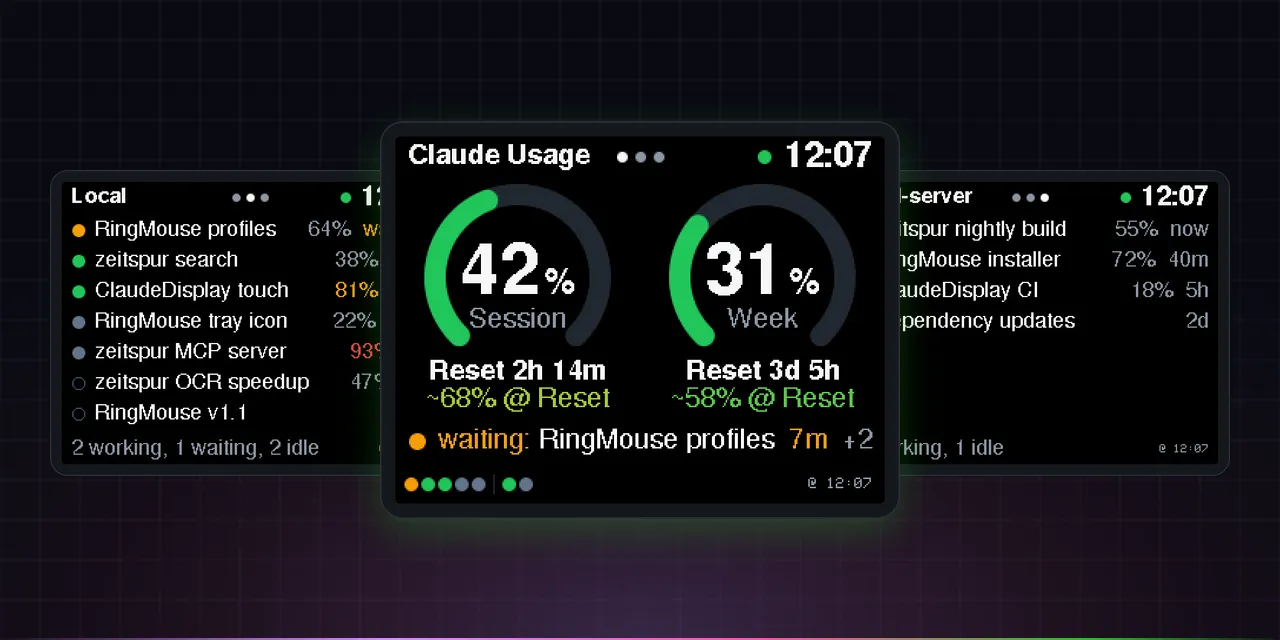
Wenn mehrere Claude-Code-Sessions parallel laufen, stellen sich ständig zwei Fragen: Wie viel ist von meinem Nutzungsfenster noch übrig – und welche Session wartet gerade auf mich? Normalerweise heißt das: Fenster wechseln. ClaudeDisplay beantwortet beides auf einem kleinen Bildschirm neben der Tastatur.
Die Hardware ist ein ESP32-2432S028, bekannt als „Cheap Yellow Display“: ein 320×240-Touchscreen mit Mikrocontroller auf der Rückseite, für wenig Geld zu haben.
Drei Seiten
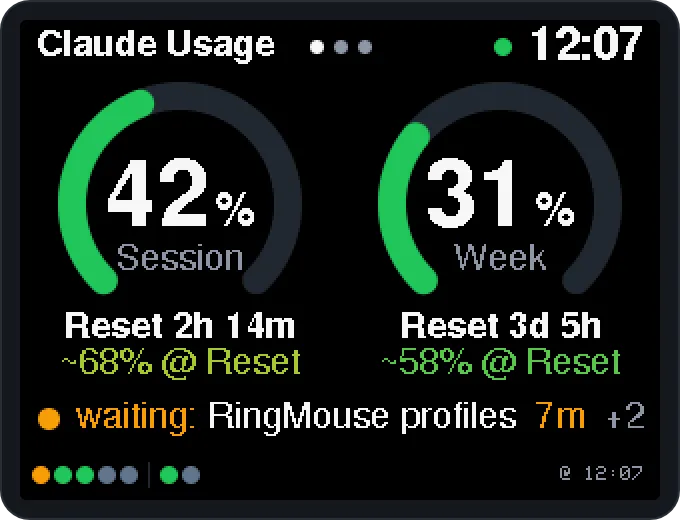
Die Startseite zeigt zwei Ringanzeigen – die 5-Stunden-Session und die 7-Tage-Woche – mit der Zeit bis zum Zurücksetzen und einer Prognose: Würde das aktuelle Tempo das Limit vor dem Reset erreichen, steht dort, wann. Darunter die Session, die gerade Aufmerksamkeit braucht, und ein Punkt pro laufender Session: pulsierend grün, solange sie arbeitet, orange blinkend, wenn sie auf mich wartet.
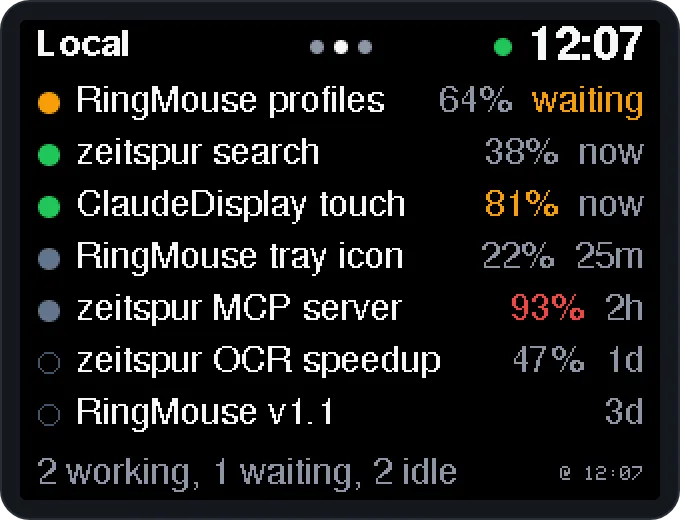
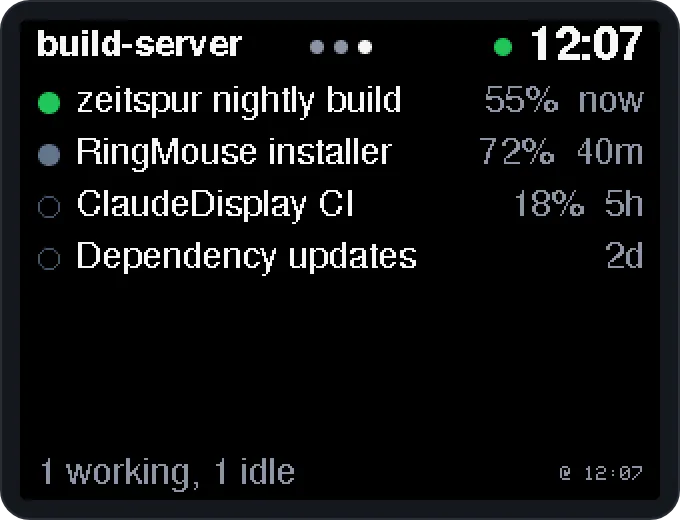
Zwei weitere Seiten listen die lokalen Sessions und die auf anderen Rechnern – mit Status, Füllstand des Kontextfensters und letzter Aktivität. Ein Tipp auf eine Session öffnet sie direkt in Claude Desktop. Ist eine längere Aufgabe fertig, blitzt der ganze Bildschirm einmal kurz auf – schwer zu übersehen, leicht zu ignorieren.
So funktioniert es
Ein kleiner PowerShell-Collector auf dem PC sammelt alles ein und schickt es per USB-Seriell an das Display. Die Nutzungswerte stammen aus derselben internen Abfrage, die die Claude-Desktop-App selbst verwendet – das kostet kein Kontingent, weil nichts an das Modell geht. Das Display hat kein WLAN und bekommt nie einen Token zu sehen; es zeichnet nur, was es empfängt. Ist Windows gesperrt, geht die Hintergrundbeleuchtung aus.
Ein Einrichtungsassistent flasht die Firmware, wählt die passende Panel-Variante (die Boards gibt es mit zwei verschiedenen Display-Controllern) und richtet den Hintergrunddienst ein – ganz ohne Adminrechte.
Inoffizielles Community-Projekt, nicht mit Anthropic verbunden.
// Changelog
Claude-Usage-Display v2.6.0
Plug & play: download one ZIP, plug in your CYD, double-click
Setup.cmd, done.Made for the Claude Desktop app on Windows (Code tab) with a claude.ai subscription (Pro, Max, Team or Enterprise). Not meant for CLI-only setups. Unofficial community project, not affiliated with Anthropic.
What's new in 2.6.0
- Context fill per session: the Local and Remote pages show how full each session's context window is ("64%", orange from 75 %, red from 90 %). The value comes from the Remote Control session list, so it needs Remote Control on that session.
- "Done" flash: when a session that worked for at least 10 s finishes or starts waiting for you, the whole screen inverts for a quarter of a second, so you notice from the corner of your eye. Remote sessions (fetched every 30 s) flash after about 30 s of work, up to 30 s late. Not while Windows is locked.
- English display texts: "~68% @ Reset", "waiting: …", "Week", "Reset 2h 14m", "2d", "@ 12:07"; error messages on the display are English too (the collector's log stays German).
- New logo and real screenshots in the README.
- Protocol: list items gain
c(context in %); new host → board messagedone.
Install (3 steps)
- Download
ClaudeDisplay-Setup-v2.6.0.zipbelow and unpack it to a folder you keep (e.g.Documents\ClaudeDisplay). - Plug the ESP32-2432S028 "Cheap Yellow Display" into your PC with a USB data cable.
- Double-click
Setup.cmdand follow the prompts (if Windows asks: "More info" → "Run anyway").
The setup assistant checks Claude Desktop and PowerShell 7 (offers to install PowerShell 7 from the Microsoft Store, no admin rights needed), finds the board, downloads Espressif's official esptool 4.12.0 (SHA256-checked, removed afterwards), optionally backs up the board's original firmware, flashes the firmware (ST7789 or ILI9341 panel, it asks whether the picture looks right) and installs the background service with a one-time browser login to Claude. A few seconds later the display shows your usage.
Uninstall.cmdremoves the background service again.Updating from an earlier version: run
Setup.cmdfrom the new ZIP; your own page titles inconfig.jsonare kept. Firmware and background service must both be updated, the setup does both.What it shows
- Home: 5-hour session and 7-day week as ring gauges with reset countdowns, a forecast ("Limit ~HH:MM" or "~XX% @ Reset"), the session line (the session waiting for you, or the one working, with the waiting time), and one animated dot per running session (green = working, orange = waiting for you, gray = idle).
- Local: your Claude Desktop sessions with status, context fill and last activity.
- Remote: sessions on other machines that use Remote Control.
- Touch: tap a session to open it in Claude Desktop, swipe sideways to switch pages.
- "Waiting" matches what Claude Desktop marks yellow. Full brightness, backlight off while Windows is locked.
Assets
File ClaudeDisplay-Setup-v2.6.0.zipEverything you need (setup assistant, firmware, background service) claude-display-st7789-v2.6.0.bin,claude-display-ili9341-v2.6.0.binFirmware images only (flash at 0x0), for manual installstest-st7789-v2.6.0.bin,test-ili9341-v2.6.0.binTest images to identify the panel type Full documentation, troubleshooting and the serial protocol: README.
Notes
- Usage numbers come from the
get_usagerequest of the Claude Code CLI bundled with Claude Desktop (uses no quota); the remote session list (and context fill) comes from an internal, undocumented Anthropic endpoint, and opening sessions uses Claude Desktop'sclaude://deep links. Any of these may change without notice. - Only titles, status and times are shown, never chat content. No token ever reaches the device; the log never contains session titles.
- License: MIT with Commons Clause (no selling).
// READMETechnische Details aus der README
Claude-Usage-Display
Shows your Claude usage (5-hour session and 7-day week) and the status of your running
Claude Code sessions on an ESP32-2432S028 "Cheap Yellow Display" (CYD).
Tap a session to open it in Claude Desktop. USB serial only: no Wi-Fi, no token on the device.
Claude CLI (get_usage)  ─┐
~\.claude\sessions       ├─► collector.ps1 ──► USB serial, NDJSON ──► CYD firmware
Desktop session files    │   (Task Scheduler,     115200 baud          3 pages, touch
Remote Control list     ─┘    PowerShell 7)
- Host:
host/collector.ps1fetches the usage every 2 minutes, reads the state of the local sessions every 2 s and the Remote Control sessions of other machines every 30 s. It computes a forecast and sends everything to the display. - Display: three pages (Home → Local → Remote), back to Home after 60 s without a tap. Tap a session to open it in Claude Desktop; swipe sideways (or tap anywhere else) to switch pages. Full brightness; the backlight turns off while Windows is locked.
Made for the Claude Desktop app on Windows (Code tab). This project is not meant for setups that only use the Claude Code CLI in a terminal; for those, Claude Code's built-in status line is the better fit. In the background the collector uses the CLI that ships with Claude Desktop; you don't install or use the CLI yourself.
Unofficial community project, not affiliated with or endorsed by Anthropic. Claude is a trademark of Anthropic. The display texts are in English; the collector's log is in German.
Requirements
- Board: ESP32-2432S028 ("Cheap Yellow Display", 320×240, touch). Tested with the dual-USB revision (micro-USB + USB-C, ST7789 panel); the original revision with an ILI9341 panel has its own build env. USB serial chip CH340, CH9102 or CP2102.
- PC: Windows 10/11 with PowerShell 7.5+. No admin rights needed.
- Claude: the Claude Desktop app for Windows with the Code tab, signed in with a claude.ai subscription (Pro, Max, Team or Enterprise). With an API key there are no usage limits and therefore nothing to show. Setups with only the standalone Claude Code CLI are not supported.
- Only for building from source: PlatformIO Core, easiest through
the PlatformIO extension for VS Code or the official installer. Both put
piointo%USERPROFILE%\.platformio\penv\Scripts, but not on the PATH. For the current PowerShell session this is enough:$env:PATH += ";$env:USERPROFILE\.platformio\penv\Scripts". Alternatively with Python 3:py -m pip install --user platformio, then usepy -m platformioinstead ofpio.
Contents
| Path | Purpose |
|---|---|
firmware/ | PlatformIO project: envs app (ST7789) and app-ili9341 = display, test-st7789/test-ili9341 = test image |
host/collector.ps1 | Background process: usage, forecast, sessions, latest.json, serial |
host/claude-cli.ps1 | Finds the Claude CLI (used by collector.ps1 and the install scripts) |
host/install.ps1 | Sets up autostart (Task Scheduler, no admin) and signs in the CLI |
host/uninstall.ps1 | Undoes everything |
setup/ | Setup assistant for the release ZIP (Setup.cmd, Setup.ps1, Uninstall.cmd, README.txt) |
docs/images/ | Logo and the screenshots in this README |
tools/make-release.ps1 | Builds a release into dist/: all firmware images (checked for local paths) and the setup ZIP |
Quick start (plug & play)
- Download
ClaudeDisplay-Setup-vX.Y.Z.zipfrom the latest release and unpack it to a folder you keep (e.g.Documents\ClaudeDisplay). - Plug the CYD into your PC with a USB data cable.
- Double-click
Setup.cmdand follow the prompts (if Windows asks, choose "More info" → "Run anyway").
The setup assistant
- checks Claude Desktop and PowerShell 7 (and offers to install PowerShell 7 from the Microsoft Store, no admin rights needed),
- finds the board (CH340, CH9102 or CP2102),
- downloads Espressif's official esptool (pinned version, SHA256-checked) for the duration of the setup,
- optionally backs up the board's original firmware into the
backupfolder, - flashes the display firmware and asks whether the screen looks right; if not, it flashes the other panel variant (ST7789 / ILI9341),
- installs the background service, including the one-time browser login to Claude.
Afterwards the display shows your usage within a few seconds. To remove the background
service later, double-click Uninstall.cmd.
Without the assistant: the release also contains the firmware images on their own.
Each contains bootloader, partition table and app and is written to address 0x0, e.g.
with the Espressif web flasher in Chrome/Edge or
with py -m esptool --chip esp32 --port COMx --baud 460800 write_flash 0x0 <file>:
| Image | For |
|---|---|
claude-display-st7789-vX.Y.Z.bin | Dual-USB revision (ST7789 panel) |
claude-display-ili9341-vX.Y.Z.bin | Original revision (ILI9341 panel) |
test-st7789-vX.Y.Z.bin, test-ili9341-vX.Y.Z.bin | Test image to find out which panel you have (see setup step 2) |
Then install the host part as in setup step 4. If the image looks wrong (inverted colors, swapped red/blue, rotated), build the firmware yourself with the build flags from setup step 2.
Setup (manual / from source)
Run all commands in PowerShell 7 from the project folder (root of this repo); -d firmware
tells PlatformIO where the firmware project is. If you downloaded the repo as a ZIP,
Windows marks the scripts as "from the internet"; that is why the commands use
-ExecutionPolicy Bypass.
1. Back up the original firmware (recommended)
The board ships with a demo program. If you want it back later, back up the whole flash
before flashing for the first time (4 MB, about 2 minutes; COMx = the board's port in
Device Manager). The first build downloads the tools (esptool):
pio run -d firmware -e app; New-Item -ItemType Directory -Force firmware\backup | Out-Nullpio pkg exec -p tool-esptoolpy -- esptool.py --chip esp32 --port COMx --baud 460800 read_flash 0 ALL firmware\backup\original-firmware.binfirmware/backup/ is listed in .gitignore and never ends up in the repo.
2. Determine the panel type
The CYD revisions use different display controllers. The test image shows labelled color bars; the right variant has a black background, matching colors and readable text ("<- oben links" = "top left" is in the top-left corner):
pio run -d firmware -e test-st7789 -t uploadIf it looks wrong, try test-ili9341. If something is still off, build flags help; they
apply to the app in the same way (set them before building and keep them for the app):
| Problem | Flag |
|---|---|
| White background, negative colors | $env:PLATFORMIO_BUILD_FLAGS = "-DPANEL_INVERT=1" |
| Red and blue swapped | $env:PLATFORMIO_BUILD_FLAGS = "-DPANEL_SWAP_RB=1" |
| Image rotated or mirrored | $env:PLATFORMIO_BUILD_FLAGS = "-DROTATION=3" (0–3 rotated, 4–7 mirrored; default 1) |
| Taps land upside down or in the wrong row | $env:PLATFORMIO_BUILD_FLAGS = "-DTOUCH_ROTATION=0" (touch orientation relative to the panel, 0–7; default 4 = vertically flipped). Each tap that opens a session is logged with its position |
Combine several flags with spaces, e.g. "-DPANEL_INVERT=1 -DROTATION=3".
3. Flash the firmware
pio run -d firmware -e app -t uploadFor ILI9341 boards use -e app-ili9341. PlatformIO finds the port by itself; with several
serial devices attached add --upload-port COMx. If the collector is already running it
holds the port: run Stop-ScheduledTask 'Claude Usage Display' first and
Start-ScheduledTask 'Claude Usage Display' afterwards.
4. Install the host part (once, no admin rights)
pwsh -NoProfile -ExecutionPolicy Bypass -File .\host\install.ps1The script
- copies
collector.ps1andclaude-cli.ps1to%USERPROFILE%\.usage-display\, - creates the task "Claude Usage Display". It starts at logon via
conhost --headless, so without a visible window, - signs in the Claude Code CLI bundled with Claude Desktop if it is not signed in yet
(
claude auth login, a one-time browser login with your Claude account). The collector uses this CLI in the background; its login is separate from the desktop app's own login, - starts the collector.
Optional parameters, e.g. your own page titles (max. 14 characters) such as the name of the server the remote sessions run on:
pwsh -NoProfile -ExecutionPolicy Bypass -File .\host\install.ps1 -LocalLabel "Laptop" -RemoteLabel "my-server"| Parameter | Effect |
|---|---|
-LocalLabel, -RemoteLabel | Title of page 1 and 2 (default "Local" / "Remote"); "" restores the default |
-Port COMx | Use a fixed COM port instead of searching; "" switches back to automatic |
-NoLogin | Do not start the CLI login |
The values are stored in %USERPROFILE%\.usage-display\config.json and survive later
installs. Running the script again is harmless; it is also how you apply a changed
collector.ps1. The collector searches the display port automatically (CH340, CH9102,
CP2102) and only uses a port on which the board answers. Other USB serial devices are
skipped for 10 minutes after 6 s without an answer.
5. Check
- After about 5–10 s the display shows values, with "@ HH:MM" (time of the last fetch) at the bottom.
- Log:
%USERPROFILE%\.usage-display\collector.log - Latest values:
%USERPROFILE%\.usage-display\latest.json
Where do the numbers come from?
The desktop app does not run Claude Code's status line; that only runs in the
terminal REPL. The collector therefore takes the same route the desktop app uses
internally. It briefly starts the Claude CLI in headless mode
(--print --input-format stream-json --output-format stream-json), sends the
get_usage control request and reads rate_limits.five_hour / seven_day
(utilization 0–100 %, resets_at).
- This uses no quota, because no request goes to the model.
- The CLI handles sign-in and token refresh itself (
~\.claude\.credentials.json). - A token from
claude setup-tokenis not enough: it only has theuser:inferencescope, and fetching usage needsuser:profile. - The collector uses the newest CLI version bundled with Claude Desktop
(
%APPDATA%\Claude\claude-code\<version>\…\claude.exe; for the MSIX version of the app, outside the app at%LOCALAPPDATA%\Packages\Claude_*\LocalCache\Roaming\Claude\claude-code\…). If a standalone CLI happens to be installed at%USERPROFILE%\.local\bin\claude.exe, that one is preferred. Without a bundled CLI the collector would also try WinGet and the PATH, but that is a fallback, not a supported setup. ACLAUDE_CONFIG_DIRsetting is respected. get_usageis an internal interface marked as experimental. If Anthropic changes it, the display shows the collector's error message in the footer.
Session status:
- Local (page 1): every running Claude Code session of the desktop app (and any CLI session in a terminal, if you also use one) keeps
~\.claude\sessions\<pid>.jsonup to date withbusy/waiting/idle. The collector only reads these.jsonfiles (never the.keyfiles) and checks PID and start time. Title and last activity of desktop sessions come from their session files (…\Claude\claude-code-sessions). Regular chats from the Chat tab cannot be read locally and are not shown. - Remote (page 2): sessions on other machines (e.g. a server running Claude Code in a
terminal) appear when Remote Control is enabled there (
/config→ "Enable Remote Control for all sessions", orclaude --remote-control). Each session then registers with Anthropic, and the collector fetches the list fromGET https://api.anthropic.com/v1/code/sessions, without any network connection to the other machine. To do so it reads the CLI's access token from.credentials.json: read-only, never logged, never refreshed (the CLI does that during theget_usageruns) and never sent to the display. Strictly speaking, page 2 shows all non-archived sessions from that list that cannot be matched to a session on this machine, including ended ones (hollow ring). If you don't use Remote Control anywhere, you will mostly see older sessions of your own there. The interface is internal and undocumented; if it breaks, page 2 shows an error and everything else keeps working. - Only titles, status and times are shown, never chat content.
Display
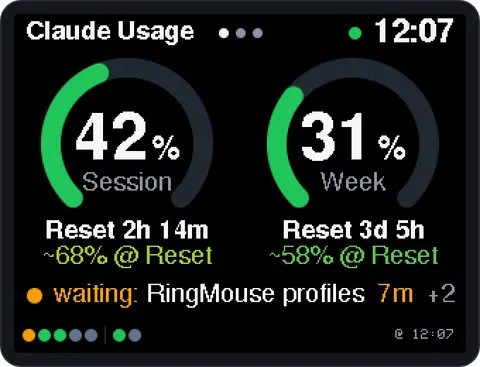
Page 0: Home. Two ring gauges for the 5-hour session and the 7-day week (green up to 50 %, yellow around 80 %, red from 95 %), each with the time until its reset ("Reset 2h 14m", "Reset 3d 5h") and a forecast. Below them the session line; at the bottom one dot per running session and "@ HH:MM", the time of the last usage fetch. The header shows the page dots and the clock; the green dot means the data is current.
- Forecast: "Limit ~HH:MM" (orange) if, at the average pace since the window started (reset minus 5 h or 7 days, starting at 0 %), the limit is reached before the reset, with a weekday if that is more than 20 h away; otherwise "~XX% @ Reset", the projected value at reset, colored like the gauges. Example: 20 % after 2.6 h → 7.7 %/h → about 38 % at reset. It only appears 30 min (session) or 12 h (week) after the window started; before that it would be too jumpy.
- Session line: the session that is waiting for you (orange, "waiting: …"), otherwise the one that is working (green, "working: …"), with its title; for a waiting session also how long it has been waiting ("7m", red after 10 min); "+2" counts further active sessions. Local and remote sessions both count. If all running sessions are idle it says "all sessions idle"; without running sessions it is empty.
- Dots: local sessions on the left, connected remote sessions after the separator. Pulsing green = working, fast-blinking orange = waiting for you, gray = idle. "Waiting" means an open permission prompt or question; for local Claude Desktop sessions also a finished turn that the app marks yellow ("needs input", e.g. Claude asks for a go-ahead) until you open the session. For remote sessions only open prompts count. Clearing the yellow dot via "Mark as completed" in the app's menu is not visible to the display.
Pages 1 (Local) and 2 (Remote): the last 7 sessions with a status dot (colors as
above, hollow ring = offline/ended), title, how full the session's context window is
("64%", orange from 75 %, red from 90 %; only for sessions with Remote Control, because
the value comes from the remote session list) and the age of the last activity ("now",
"25m", "2h", "3d"; "waiting" for sessions that wait for you). At the bottom a summary,
e.g. "2 working, 1 waiting, 2 idle". Page 2 can have its own title, like "build-server"
above (install.ps1 -RemoteLabel).
Tap to open: tapping the session line (page 0) or a list row (pages 1/2) opens that session in Claude Desktop, local and remote sessions alike (remote ones in the app's view for Remote Control sessions). The row lights up briefly. Terminal sessions cannot be opened; tapping them, the header, the footer or an empty area switches to the next page.
Switching pages: swipe left for the next page, right for the previous one.
"Done" flash: when a session that worked for at least 10 s finishes (idle or waiting for you), the whole screen inverts for a quarter of a second. Not while Windows is locked. Remote sessions are only fetched every 30 s: they flash if two fetches in a row saw them working (so after about 30 s of work or more), and up to 30 s late.
- "Waiting for data": the display has not received anything from the host since it started.
- "Offline": no message from the host for 90 s ("No data for …"). The last known values are shown at the bottom.
--: value unknown, e.g. before the first successful fetch.- Brightness: always 100 %; while Windows is locked the backlight is off. (The light sensor is not used: inside a case it reads "dark" even in a normally lit room.)
The screenshots are read straight from a real display (debug build with -DSCREENSHOT)
that was fed demo sessions.
Troubleshooting
| Symptom | Cause / fix |
|---|---|
| Footer "Not signed in: claude auth login" | Run install.ps1 again; it starts the login |
| Footer "Claude CLI not found" | Is Claude Desktop installed and has its Code tab been opened at least once? The desktop app downloads its bundled CLI there |
| "Waiting for data" stays on screen | Is the task running? Get-ScheduledTask 'Claude Usage Display'; also check collector.log |
| Log: "Port COMx nicht verfuegbar: Access … denied" (port not available) | Another program holds the port (serial monitor, PlatformIO upload, a second collector). The collector retries every 3 s |
| Display is not found | Device Manager: does "USB-SERIAL CH340 (COMx)" or "CP210x (COMx)" show up? If not, install the chip's driver (WCH CH341SER or Silicon Labs CP210x). Charge-only cable? |
| Board restarts when the port is opened | Happens occasionally (DTR/RTS auto-reset circuit). Harmless: the board sends hello and the collector immediately sends the current state |
| Wrong colors or mirrored image | Check panel type and build flags (PANEL_INVERT, PANEL_SWAP_RB, ROTATION), see setup step 2 |
| Log: "Kein Display an COMx (keine Antwort)" (no display, no answer) | Another USB serial device is on that port, or the board does not run this firmware yet. Flash the firmware or set install.ps1 -Port COMx |
| White screen | SPI clock too high. It is set to 27 MHz in lgfx_cyd.h; above about 32 MHz the panel initialisation fails on some boards |
PlatformIO install fails with CERTIFICATE_VERIFY_FAILED | A proxy with TLS inspection (common in corporate networks) intercepts the connection. Install outside that network or point REQUESTS_CA_BUNDLE to the corporate certificate |
| Numbers differ briefly from claude.ai | The fetch runs every 2 minutes; "@ HH:MM" at the bottom tells you how current they are |
| Remote page: "No CLI login" / "List: login expired" | The CLI login is missing or expired: run install.ps1 again |
| Remote page: "List unavailable" | No network, or the internal interface has changed. The last list stays on screen |
| Remote page stays empty | Remote Control is not enabled on the other machine, or it uses a different Claude account |
| Display stays dark although unlocked | "Locked" means LogonUI.exe is running. After unlocking, the next update arrives within 2 s |
The log is kept short: start, connect, disconnect, changed values, errors. Repeated
identical errors are logged only once. At 1 MB it is rotated to collector.log.1.
Protocol
One JSON message per line (UTF-8, \n), 115200 baud, 8N1. Both sides ignore lines that
do not start with { (e.g. ESP32 boot messages). The board drops lines longer than
1023 bytes entirely. Texts are ASCII (umlauts transliterated), because the fonts know
nothing else.
Host → display
state: on every change, after hello, and every 30 s.
{"t":"state","now":1790975844,"tz":120,
 "s":{"p":17.0,"r":1791031800,"f":1790990400},"w":{"p":24.0,"r":1791284400,"f":0,"e":44},
"at":1790975800,"lock":0,"d":"w|aiii","x":{"s":"a","n":"API client refactoring","m":1,"t":1790975100,"o":1}}| Field | Meaning |
|---|---|
now | Current time, Unix seconds (UTC). The board keeps its clock with it |
tz | Local UTC offset in minutes, including daylight saving time |
s, w | Session (5 h) and week (7 d): p = used in %, r = reset (Unix s), f = forecast: time at which 100 % is reached, 0 = not before the reset (then e = projected value at reset in %), missing = no forecast yet. If the object is missing, the value is unknown |
at | Time of the last successful fetch (missing until there is one) |
err | Short error text for the footer (ASCII, max. 44 characters). Missing when all is well |
lock | 1 = Windows locked → backlight off (also stays in effect while offline) |
d | Dots: one character per running session, w working, a waiting, i idle; local first, then |, then remote (max. 24) |
x | Session line: s = a waiting / w working / i all idle, n = title (ASCII, max. 40), m = number of further active sessions, t = waiting since (Unix s, only for a), o = 1 if it can be opened on the PC. Missing = no running sessions |
list: session list for page p (1 = local, 2 = remote), on change and after hello.
{"t":"list","p":2,"at":1790975800,"l":"my-server","i":[{"n":"Refactoring API client","s":"i","a":1790890000,"o":1,"c":51}]}Max. 7 entries, newest first. n = title (max. 40 characters), s = w working,
a waiting, i idle, o offline/ended, a = last activity (Unix s), o = 1 if the
session can be opened on the PC (not for terminal sessions), c = context window used in %
(missing = unknown). Optional err
(error while fetching) and l (custom page title, max. 14 characters).
{"t":"done"}: a session that worked for at least 10 s (remote: in two fetches in a row) has
finished; the display inverts for 250 ms. Not sent while Windows is locked.
Display → host
| Message | When |
|---|---|
{"t":"hello","fw":"2.6.0"} | After start-up. The host immediately sends state and both list |
{"t":"ack","s":17.0,"w":24.0,"b":255} | After every state: the accepted values and the target brightness b (255, or 0 while locked) |
{"t":"open","p":1,"i":2,"n":"Refactoring API client","x":160,"y":95} | A session was tapped: page p, row i (-1 = session line), shown title n, tap position x/y. The host takes row i of the list it last sent if the title matches (otherwise it searches by title) and opens claude://claude.ai/epitaxy/<id> (local) or claude://claude.ai/code/<id> (remote, cse_ becomes session_) in Claude Desktop. It logs page, row and position, never the title |
Timing: usage every 120 s (in the background), local sessions every 2 s (Claude Desktop
session files every 4 s), remote list every 30 s, lock
state every 2 s, heartbeat every 30 s, offline screen after 90 s without state.
The board computes the countdowns itself from r and the clock set by the host.
Uninstall
Mind the order: restoring the original firmware needs PlatformIO (esptool).
1. Optional: restore the original firmware (the file backed up in setup step 1).
Stop the collector first (Stop-ScheduledTask 'Claude Usage Display').
pio pkg exec -p tool-esptoolpy -- esptool.py --chip esp32 --port COMx --baud 460800 write_flash 0 firmware\backup\original-firmware.bin2. Remove the host part:
pwsh -NoProfile -ExecutionPolicy Bypass -File .\host\uninstall.ps1Removes the task, stops the collector and deletes %USERPROFILE%\.usage-display.
Optional switches:
-Logoutalso signs out the Claude CLI.-RemovePlatformIOalso deletes%USERPROFILE%\.platformio. Only use it after step 1, and only if you installed PlatformIO just for this project: the folder also holds the tools of other PlatformIO projects and of the VS Code extension.
This project does not modify ~\.claude\settings.json.
Hardware notes
- Tested with ESP32-D0WD-V3, 4 MB flash, CH340 (VID 1A86, PID 7523).
- Panel of the dual-USB revision: ST7789 family (controller ID
81 81 B3, read back via SPI), no inversion, BGR, rotation 1 = landscape 320×240. - SPI: SCLK 14, MOSI 13, MISO 12, CS 15, DC 2, no reset pin. Backlight GPIO 21 (PWM). Touch (XPT2046): CLK 25, MOSI 32, MISO 39, CS 33, IRQ 36.
- Without a reset pin the panel keeps its registers until power is removed. The firmware
therefore resets it by software at start-up and then writes
B6h(gate scan direction). This way the image is the same after every restart, whatever firmware ran before. - Auto-reset circuit: RTS → EN, DTR → GPIO0. That is why the collector opens the port
with
DtrEnable = RtsEnable = false.
Some of the pin and clock findings were inspired by the Blink project. No code was taken from it.
License
MIT with the "Commons Clause": you may use, modify and share it freely, but selling it or offering paid products or services whose value derives substantially from this software is not allowed. See LICENSE for details.